
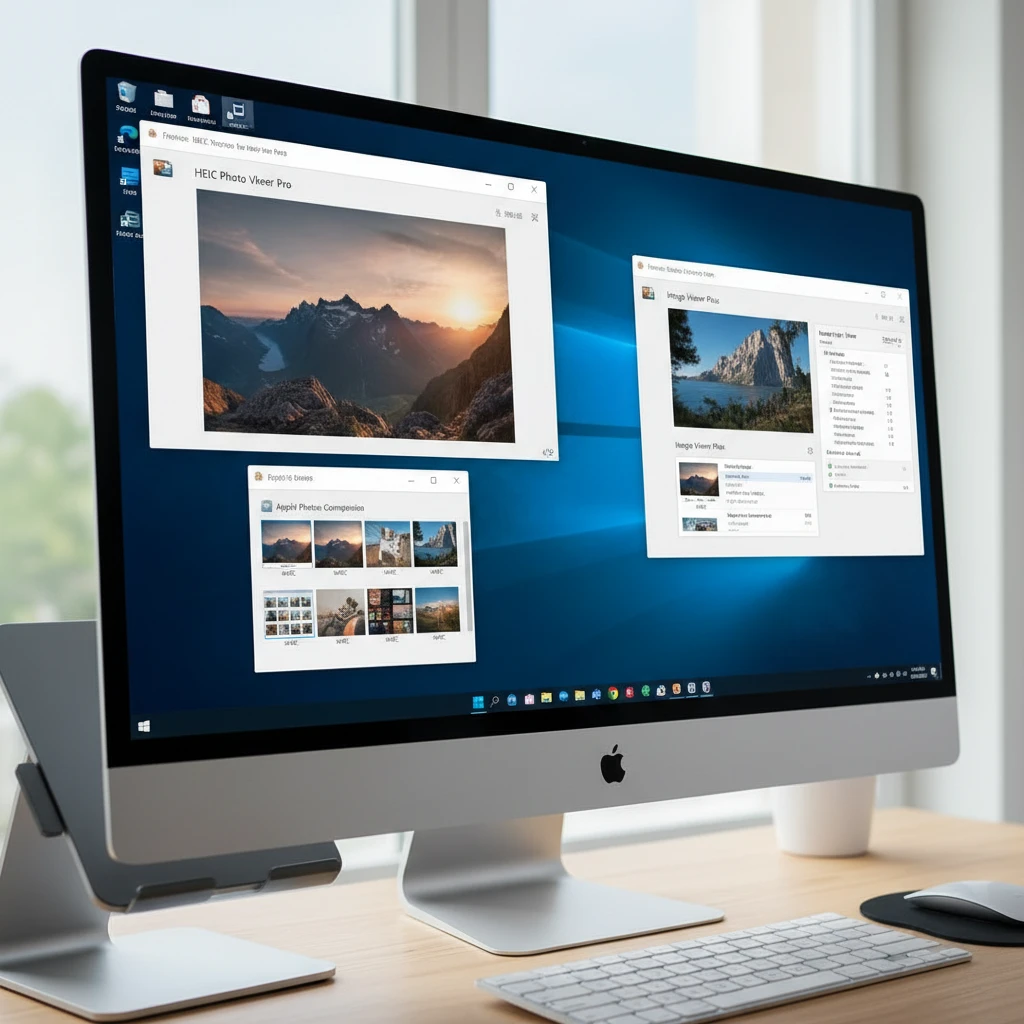
Best HEIC Viewer for Windows: Complete Guide to Opening Apple Photos
You’ve just received photos from an iPhone user, but when you try to open them on your Windows computer, you’re greeted with an error message or blank thumbnails. Those files likely have a .HEIC extension – Apple’s default photo format since iOS 11. While this format creates smaller file sizes with better quality than traditional JPEG, it leaves many Windows users scratching their heads.
The good news? You don’t need to ask your iPhone friends to resend their photos in a different format. There are several reliable methods to view HEIC files on Windows, each with its own advantages depending on your needs and technical comfort level.
TL;DR: Quick Solutions for HEIC Files
- Enable HEIF Image Extensions in Microsoft Store for native Windows 10/11 support
- Use built-in Photos app after installing codec extensions
- Download a dedicated HEIC viewer application for advanced features
- Convert files online if you only need occasional access
- Consider file conversion for permanent JPEG versions
Understanding HEIC: Why Your Windows PC Struggles
HEIC stands for High Efficiency Image Container, part of the HEIF (High Efficiency Image Format) standard. Apple adopted this format because it **reduces file sizes by up to 50% compared to JPEG** while maintaining superior image quality. A typical 12-megapixel iPhone photo might be 3MB as JPEG but only 1.5MB as HEIC.
Windows doesn’t include HEIC codecs by default due to licensing costs and patent complexities. Microsoft would need to pay royalties to include native support, so they’ve made it an optional download instead. This explains why your Windows 10 or 11 machine can’t open these files out of the box – it’s not a bug, it’s a business decision.
Common HEIC Viewing Problems
When you encounter HEIC files on Windows, you might see:
- «Windows can’t open this type of file» error messages
- Blank thumbnails in File Explorer
- Photos app displaying «We can’t open this file» notifications
- Image editing software refusing to import the files
Method 1: Enable Native Windows HEIC Support
The most straightforward approach involves installing Microsoft’s official HEIC codec extensions. This method transforms your existing Windows apps into capable HEIC viewers without installing additional software.
Step-by-Step Installation Process
- Open the Microsoft Store app on your Windows 10 or 11 computer
- Search for «HEIF Image Extensions»
- Click «Get» or «Install» (it’s free)
- Wait for the download and automatic installation to complete
- Optionally, also install «HEVC Video Extensions» for related video files
After installation, your Photos app, File Explorer, and most image viewers will display HEIC files normally. **This method works seamlessly with existing Windows workflows** and doesn’t require learning new software interfaces.
Troubleshooting Native Support
If HEIC files still won’t open after installing the extensions, try these solutions:
- Restart your computer to ensure codec registration
- Update Windows to the latest version (some older builds have codec issues)
- Check that you’re running Windows 10 version 1903 or later
- Verify the file isn’t corrupted by testing with multiple HEIC images
Best HEIC Viewer for Windows: Comparing Your Options
| Approach | Cost | Best For | Setup Complexity |
|---|---|---|---|
| Windows Native Support | Free | Casual users, existing workflow integration | Very Easy |
| Dedicated Viewer Apps | Free/Paid | Heavy HEIC users, batch operations | Easy |
| Online Converters | Free | Occasional use, no software installation | None |
Method 2: Dedicated HEIC Viewer Applications
Third-party HEIC viewers often provide features beyond basic image display. These applications typically offer faster loading times, batch conversion capabilities, and advanced image management tools that power users appreciate.
Key Features to Look For
When evaluating dedicated HEIC viewer software, prioritize these capabilities:
- **Batch conversion to JPEG or PNG formats**
- Metadata preservation (EXIF data, location info)
- Thumbnail generation for quick browsing
- Integration with Windows context menus
- Support for HEIC image sequences and Live Photos
Installation and Usage Tips
Most HEIC viewer applications follow similar installation patterns. Download from the developer’s official website, run the installer with administrator privileges, and allow the software to register file associations. Many viewers automatically become the default handler for HEIC files, which you can modify in Windows Settings under «Default Apps» if needed.
For optimal performance, choose viewers that support hardware acceleration if you frequently work with high-resolution HEIC images. This feature significantly reduces loading times for 48-megapixel ProRAW files and other large formats.
Method 3: Online HEIC Conversion and Viewing
Web-based HEIC converters offer a software-free solution that works on any computer with internet access. These services typically convert your HEIC files to JPEG or PNG format, which any Windows computer can display natively.
When to Choose Online Conversion
Online converters excel in specific scenarios:
- You’re using a shared or public computer
- You only occasionally encounter HEIC files
- You want permanent JPEG copies for broader compatibility
- Your organization restricts software installation
However, be cautious about uploading sensitive photos to online services. Read privacy policies carefully and consider whether your images contain personal information you’d prefer to keep private.
Conversion Process Overview
Most online HEIC converters follow this workflow: upload your files (usually via drag-and-drop), wait for server-side conversion, then download the converted images. **Processing typically takes 30-60 seconds per image**, depending on file size and server load.
Advanced HEIC Viewing: Batch Operations and Automation
If you regularly receive large numbers of HEIC files – perhaps you’re a photographer working with iPhone-shooting clients – consider solutions that handle batch operations efficiently.
Command-Line Tools for Power Users
Several command-line utilities can convert entire folders of HEIC files automatically. These tools integrate well with Windows batch scripts and can be scheduled to run automatically when new files appear in specific directories.
For users comfortable with PowerShell or Command Prompt, command-line conversion offers unmatched speed and automation potential. You can process hundreds of files in minutes rather than converting them individually.
Folder Monitoring Solutions
Some advanced HEIC viewers include folder monitoring features that automatically convert new HEIC files as they arrive. This approach works particularly well for users who regularly sync iPhone photos to specific Windows folders.
Troubleshooting Common HEIC Viewing Issues
Even with proper software installed, you might encounter occasional problems viewing HEIC files. Here are solutions to the most frequent issues.
Corrupted File Recognition
Sometimes files that appear to be HEIC images are actually corrupted or incompletely transferred. **Genuine HEIC files should be at least 50KB in size** for even simple images. Smaller files often indicate transfer problems or corruption.
To verify file integrity, try opening the same image on the original iPhone or ask the sender to retransmit the photo. If multiple HEIC files from the same source won’t open, the issue likely lies in the transfer method rather than your viewing software.
Version Compatibility Problems
HEIC format specifications have evolved since Apple’s initial implementation. Some older HEIC viewers might struggle with images captured on newer iPhone models or those using advanced features like Photographic Styles or Cinematic mode.
If you’re having trouble with specific HEIC files but others work fine, ensure your viewing software supports the latest HEIF specifications. Updating to current software versions usually resolves these compatibility issues.
Privacy and Security Considerations
HEIC files contain extensive metadata that might reveal more information than you expect. Beyond standard EXIF data like camera settings and capture time, HEIC images can include GPS coordinates, device serial numbers, and even thumbnail previews of nearby photos.
When choosing a HEIC viewer, consider whether it displays or strips this metadata. Some viewers offer privacy-focused modes that automatically remove location data and other sensitive information when converting to JPEG format.
Network Security for Online Converters
If you opt for web-based HEIC conversion, verify that the service uses HTTPS encryption for file uploads. Reputable converters also promise to delete uploaded files within hours of processing, though you should assume any uploaded image could potentially be retained.
For sensitive photos, local software solutions provide better privacy control than online services, even if they require more initial setup effort.
Performance Optimization Tips
Large HEIC files can strain older Windows computers, especially when viewing multiple images simultaneously. **A typical iPhone 14 ProRAW HEIC file exceeds 75MB**, compared to 3-8MB for standard HEIC images.
To improve performance when working with HEIC files:
- Close unnecessary applications to free up RAM
- Store HEIC files on your fastest drive (SSD preferred)
- Use viewers that support thumbnail caching
- Consider converting frequently-accessed images to JPEG for faster loading
Future-Proofing Your HEIC Workflow
As more smartphone manufacturers adopt HEIF formats, HEIC compatibility will become increasingly important. Microsoft has gradually improved native HEIC support in recent Windows updates, suggesting better integration in future versions.
However, the licensing costs that currently limit built-in HEIC support aren’t disappearing soon. **Planning for a mixed HEIC/JPEG workflow** ensures you’ll be prepared regardless of how format adoption evolves.
Consider establishing consistent file naming conventions and folder structures that work well with both HEIC and converted JPEG files. This approach simplifies long-term photo organization and makes it easier to switch between different viewing methods as your needs change.
Frequently Asked Questions
Is HEIC better quality than JPEG?
Yes, HEIC provides better image quality at smaller file sizes. It uses more advanced compression algorithms that preserve details JPEG would discard.
Can I convert HEIC to JPEG without quality loss?
No conversion between different formats is completely lossless, but the quality difference is usually imperceptible for typical viewing and sharing purposes.
Why doesn’t Windows support HEIC natively?
Microsoft must pay licensing fees to include HEIC codecs. They’ve made it optional to keep Windows licensing costs lower.
Will installing HEIC support slow down my computer?
No, HEIC codec extensions have minimal system impact and only activate when processing HEIC files.
Can I edit HEIC files directly?
Some image editors support HEIC, but converting to JPEG or PNG first often provides broader software compatibility for editing.
Making the Right Choice for Your Needs
The best HEIC viewer for your Windows computer depends on how frequently you encounter these files and what you plan to do with them. Casual users who occasionally receive iPhone photos will find Microsoft’s free codec extensions perfectly adequate.
More demanding users – particularly those who work with large numbers of HEIC files professionally – benefit from dedicated viewing applications that offer batch conversion, advanced metadata handling, and integration with existing photo management workflows.
Regardless of which approach you choose, having a reliable method to view HEIC files ensures you’ll never miss out on photos from iPhone users again. The format isn’t going anywhere, and being prepared saves time and frustration when those important images arrive.